MiScreen Air Connection Kit | Wireless Connection to Tablets, iPads, Chromebooks, Phones
Print via app over Wi-Fi from devices (no computer).
NEHOCSKU: DSM-MSAIR
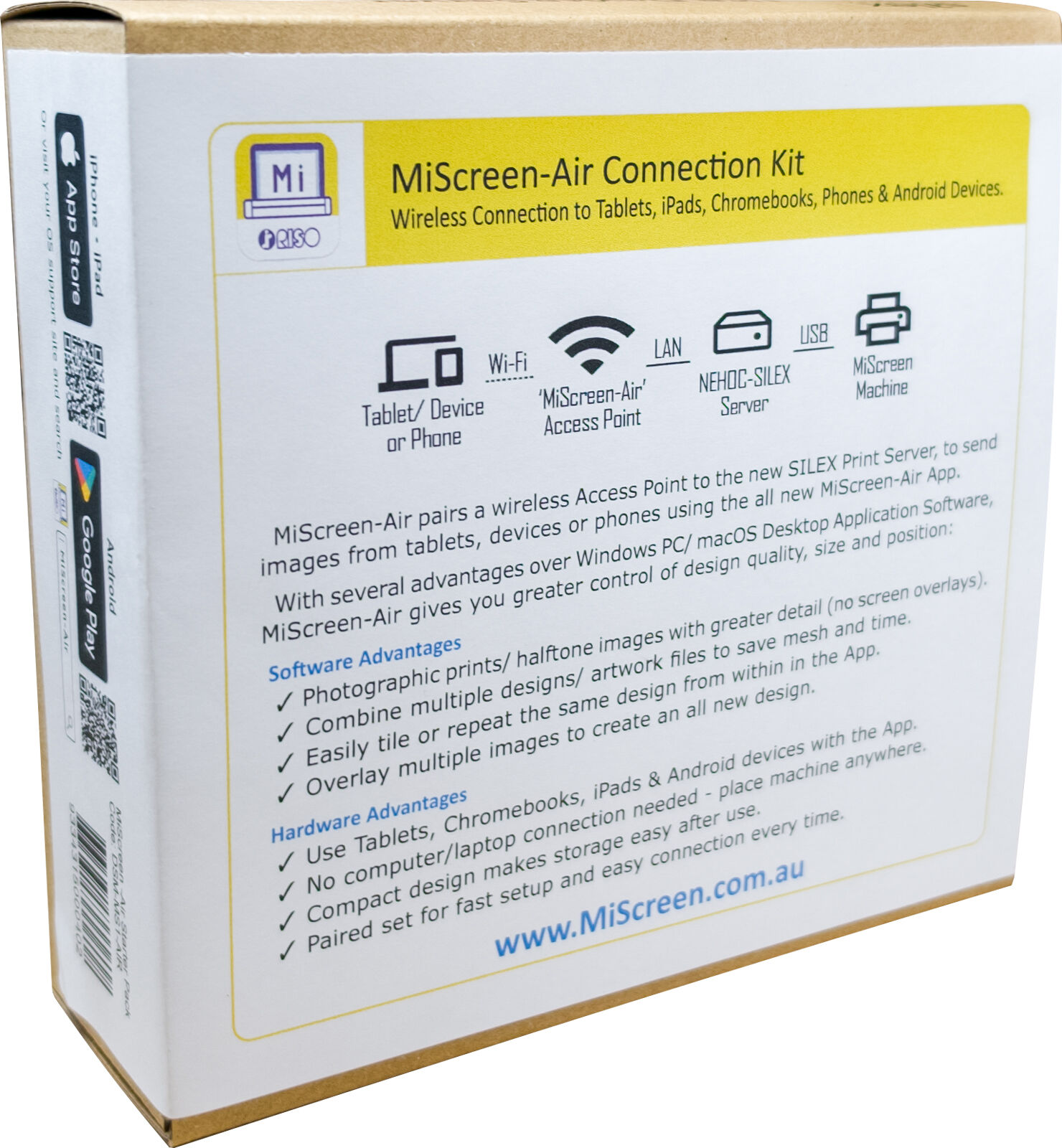
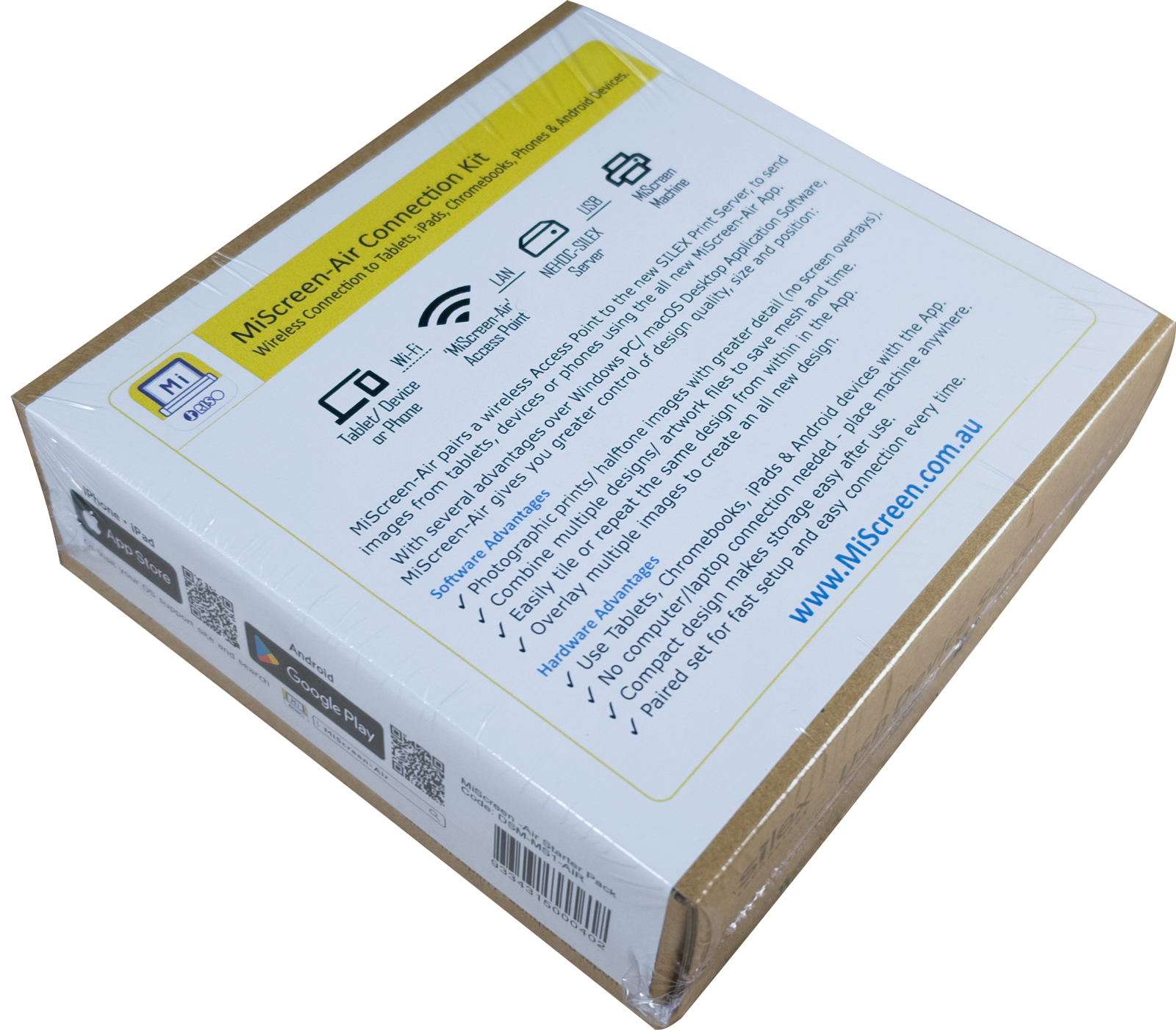
Wireless Connection to Tablets, iPads, Chromebooks, Phones & Android Devices.
MiScreen-Air allows iPads/ Android Tablets/ Phones & Chromebooks to directly connect over Wi-Fi to the MiScreen machine (no more computer only connection).
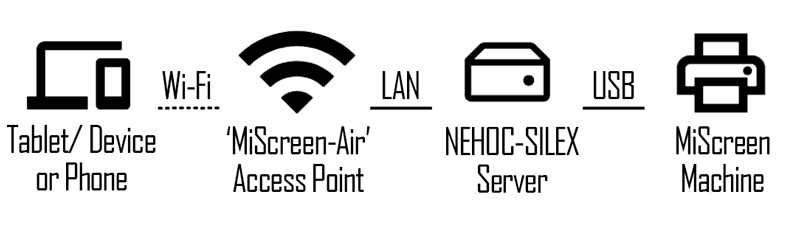
MiScreen-Air pairs a wireless Access Point to a SILEX Print Server, to send images from tablets, devices or phones using the all new MiScreen-Air App.
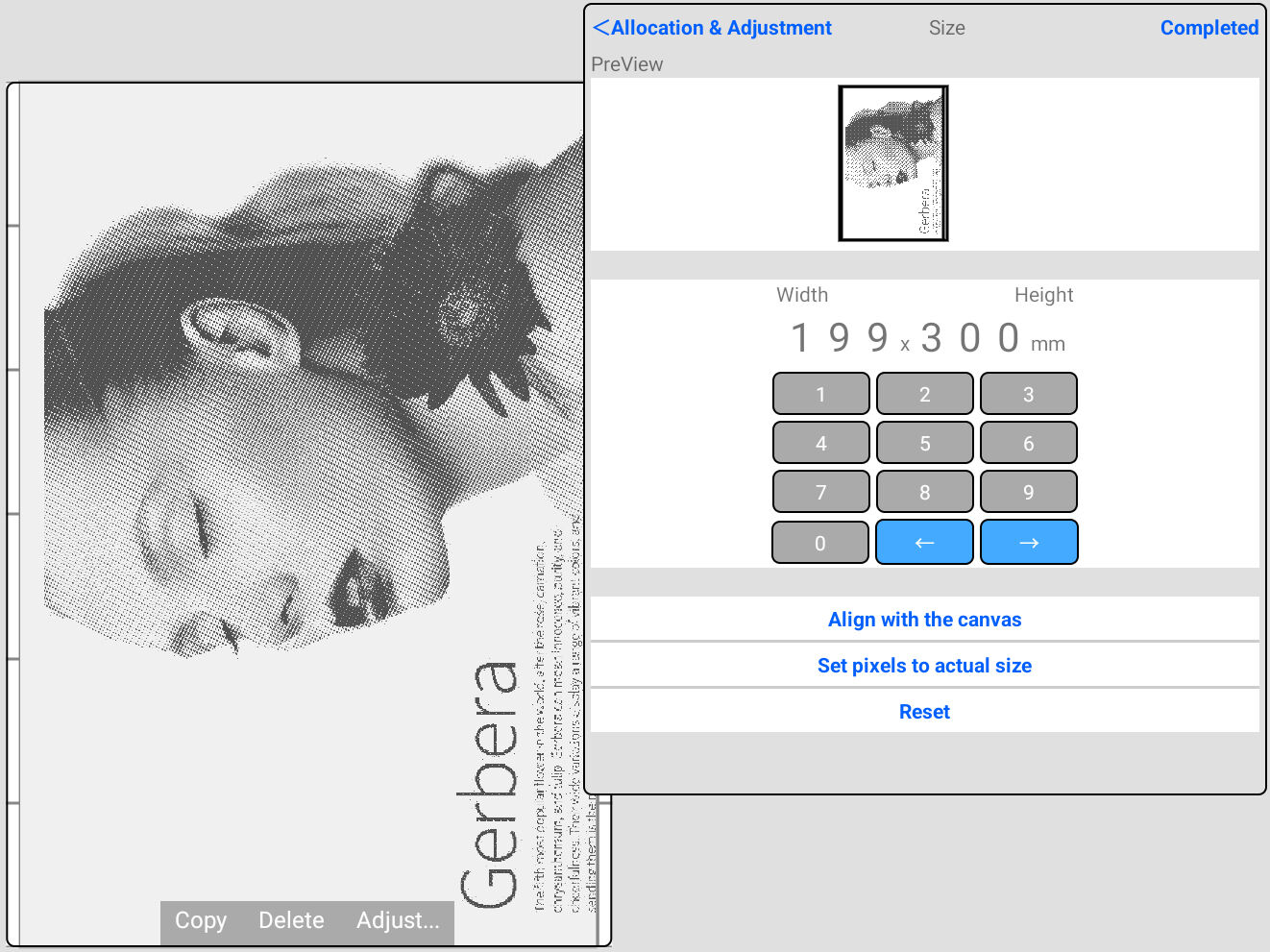
With several advantages over Windows PC/ macOS Desktop Application Software, MiScreen-Air gives you greater control of design quality, size and position.
Software Advantages
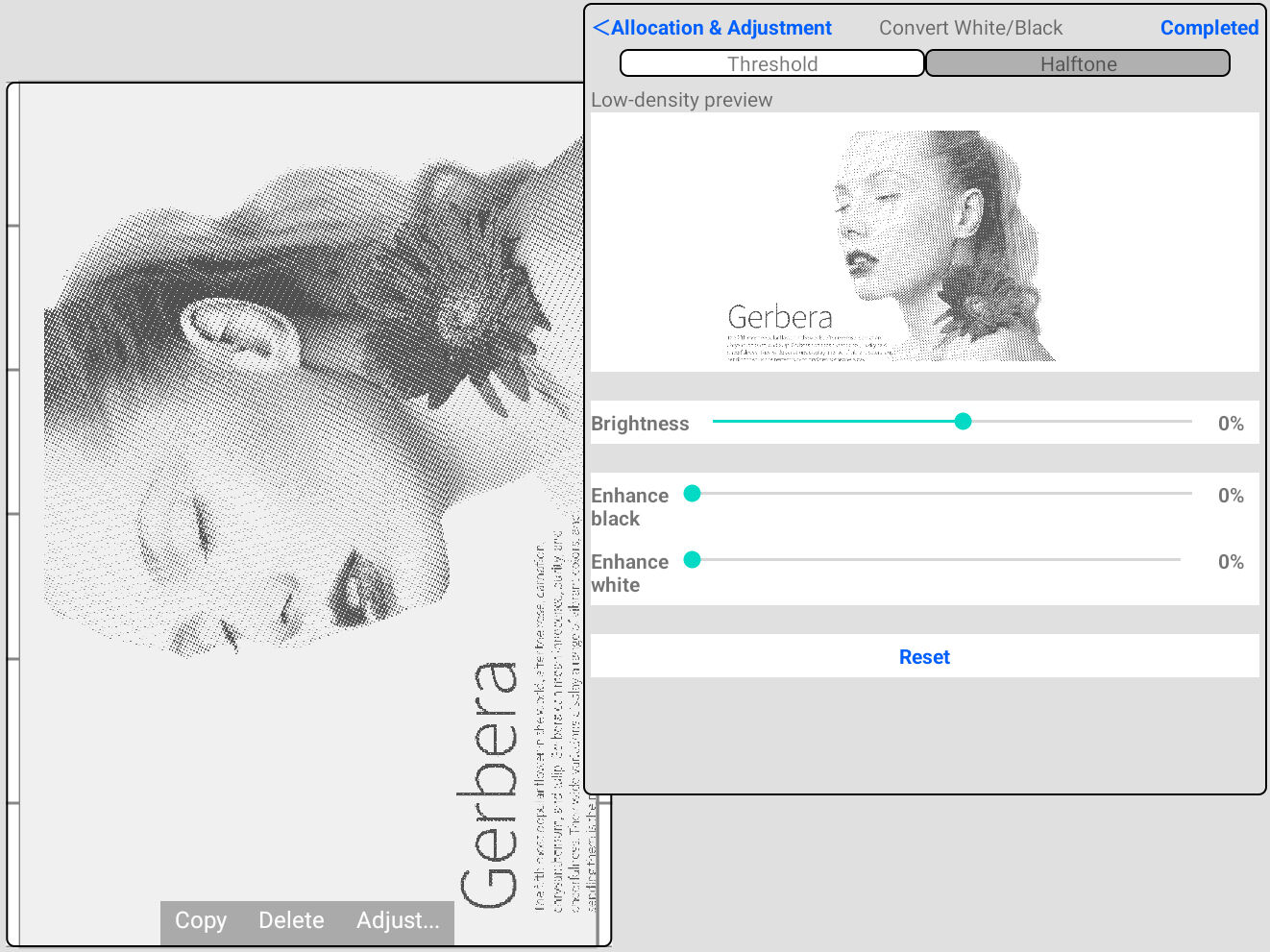
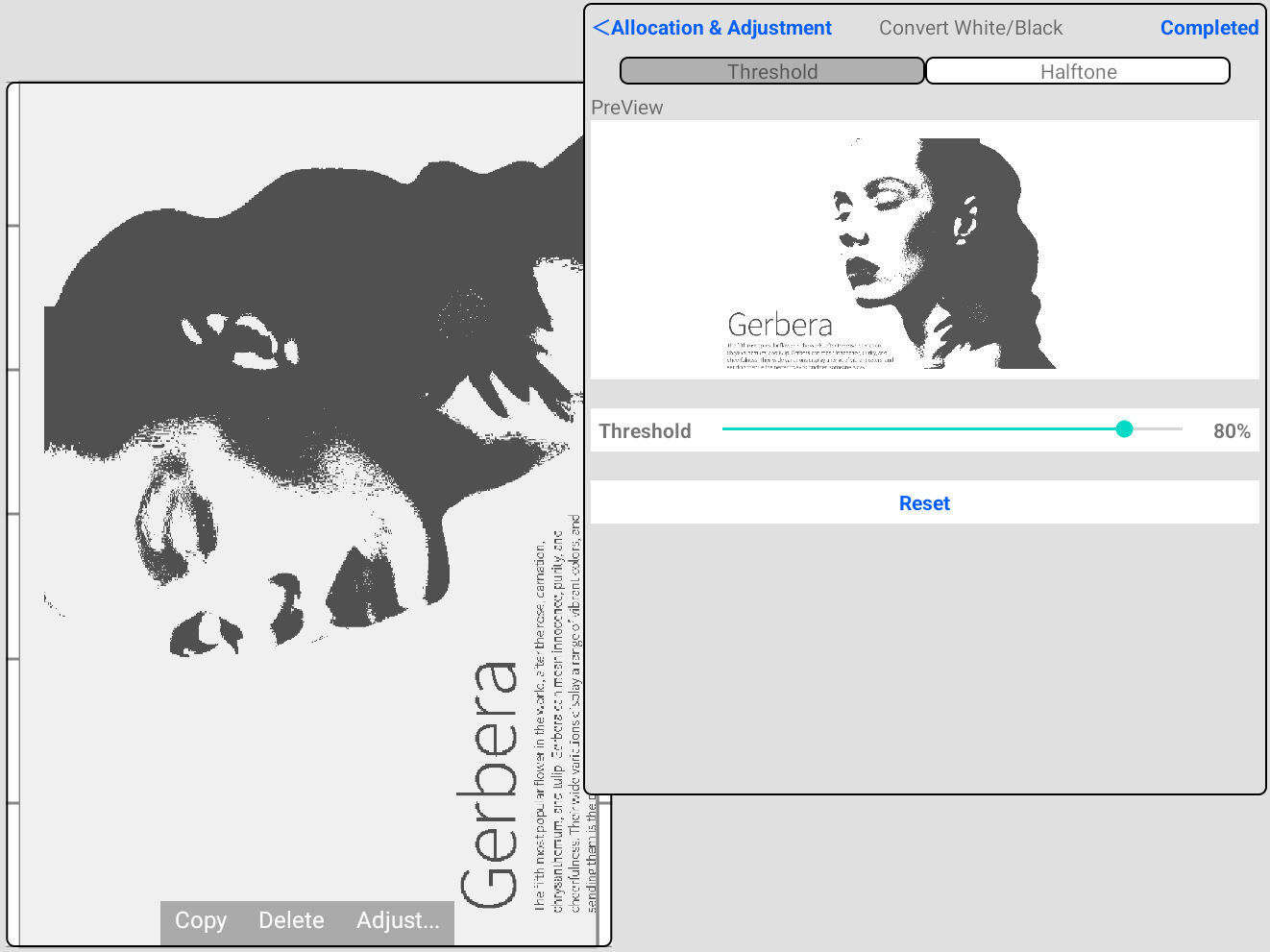
- Photographic prints/ halftone images with greater detail (no screen overlays).
- Combine multiple designs/ artwork files to save mesh and time.
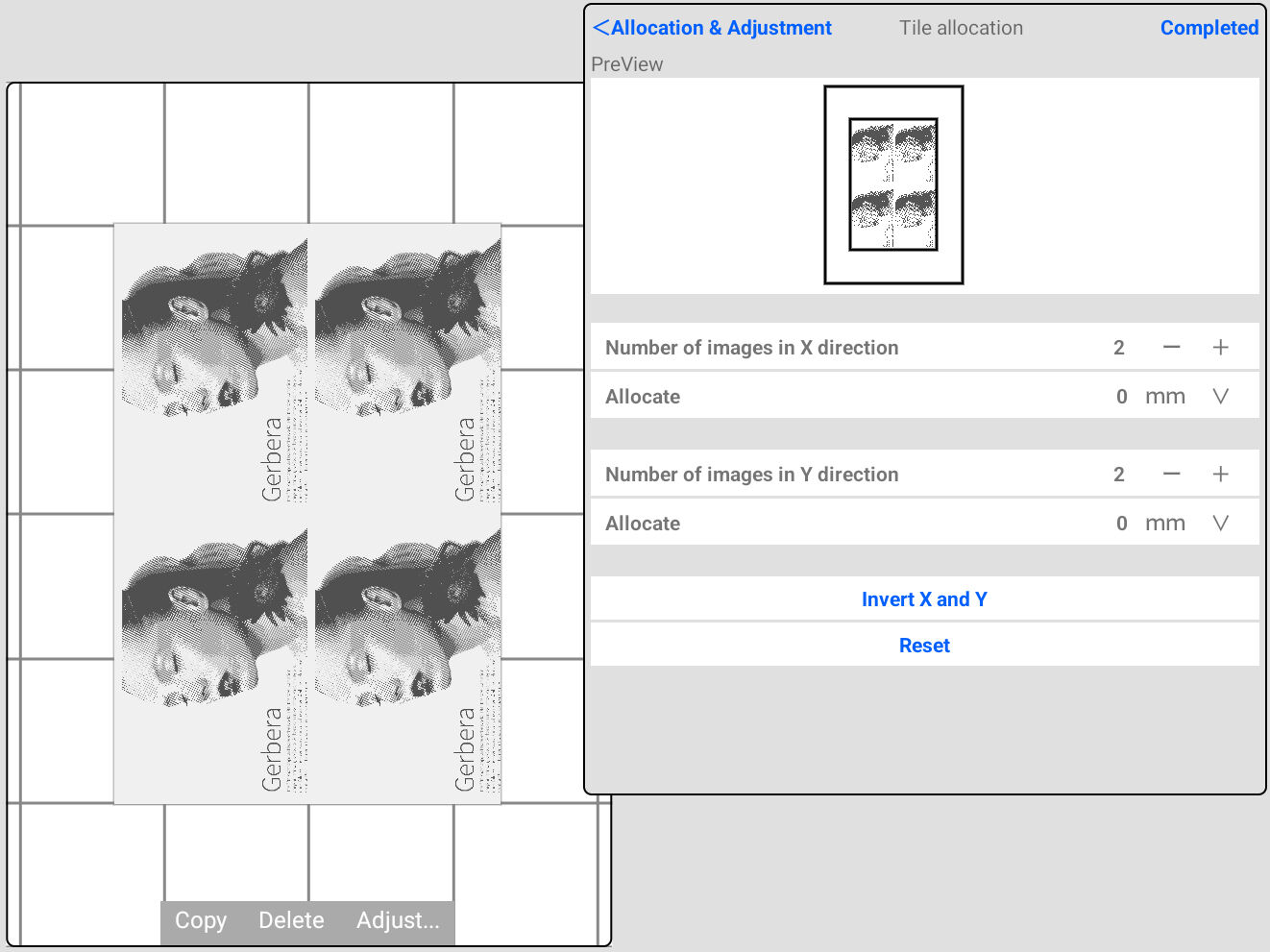
- Easily tile or repeat the same design from within in the App.
- Overlay multiple images to create an all new design.
- Free App, no subscriptions of fees.
- Multiple devices can be connected making classroom use even easier and faster.
Hardware Advantages
- Use Tablets, Chromebooks, iPads & Android devices with the App.
- No computer/laptop connection needed - place machine anywhere.
- Compact design makes storage easy after use.
- Paired set for fast setup and easy connection every time.
- Screens are sent directly from the device to the MiScreen and imaged.
Usage
Step 1 - Download and install the MiScreen-Air App on your tablet, device or phone.
Note: For Windows PC/ MAC OS desktop software visit www.MiScreen.com.au
 |
 |
| . . or visit your OS support site and search. |  |
Step 2 - Connect to MiScreen-Air
1. Connect the LAN cable between the Access Point and Silex Device.
2. Connect the MiScreen USB into the Silex Server USB Left Side Port.
3. Plug in power to both the Access Point and Silex Device and turn both on.
4. Open your tablet/device/phone Wireless Network Settings and connect to network ‘MiScreen-Air’, enter password as shown on the top of the access point.
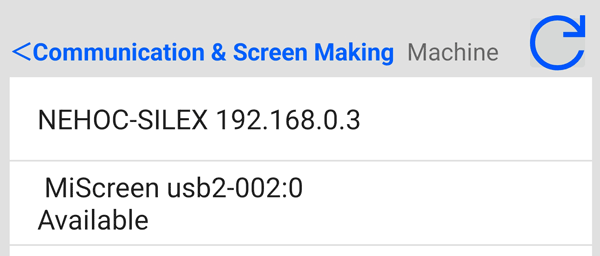
Step 3 - Pair the MiScreen-Air App to Silex ServerNote: Pairing is only required on initial use, afterwards setup is remembered and automatic. 1. Open the MiScreen-Air App, and select 2. Select the Available MiScreen USB connection. |
 |
|
3. Exit screen to previous menu, press ‘Completed’ and Once pairing is completed, it is not required on startup or ongoing use. If a connection error occurs, repeat steps above to repair. |
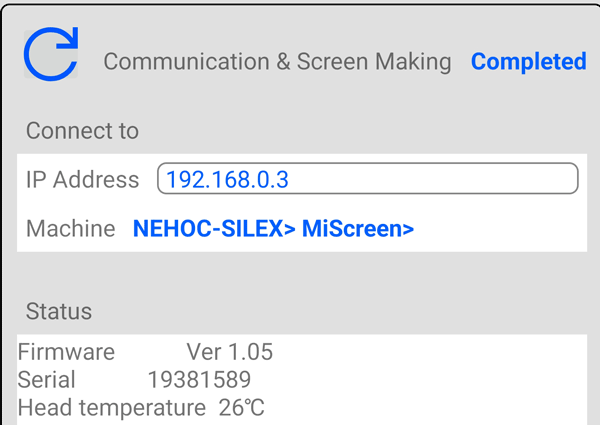 |
 'Print' icon to
Note: This is an Accessory Kit and requires a MiScreen Machine (sold separately) to operate.
Do Other USB Print Servers Work?
NEHOC state none they have successfully purchased or used including PCI Cards, AliExpress, etc. The SILEX contains server grade hardware with inbuilt USB detection and inbuilt software allocation enabling the MiScreen connection to operate.
Shipping Notice - No Free Options
This product is supplied at a heavily discounted cost. When added to your cart, no free delivery options will be available.
- If you qualified for a free delivery option with other items in your cart, we suggest splitting your order into two parts and making an ink only order. Orders can not be split after submitting.
To calculate shipping costs, use the shipping calculator on the product page, or add items to cart, view the cart and enter your post code to display available options.
- If an option does not appear, create a Quote and contact us for a shipping cost.
Pack Contents
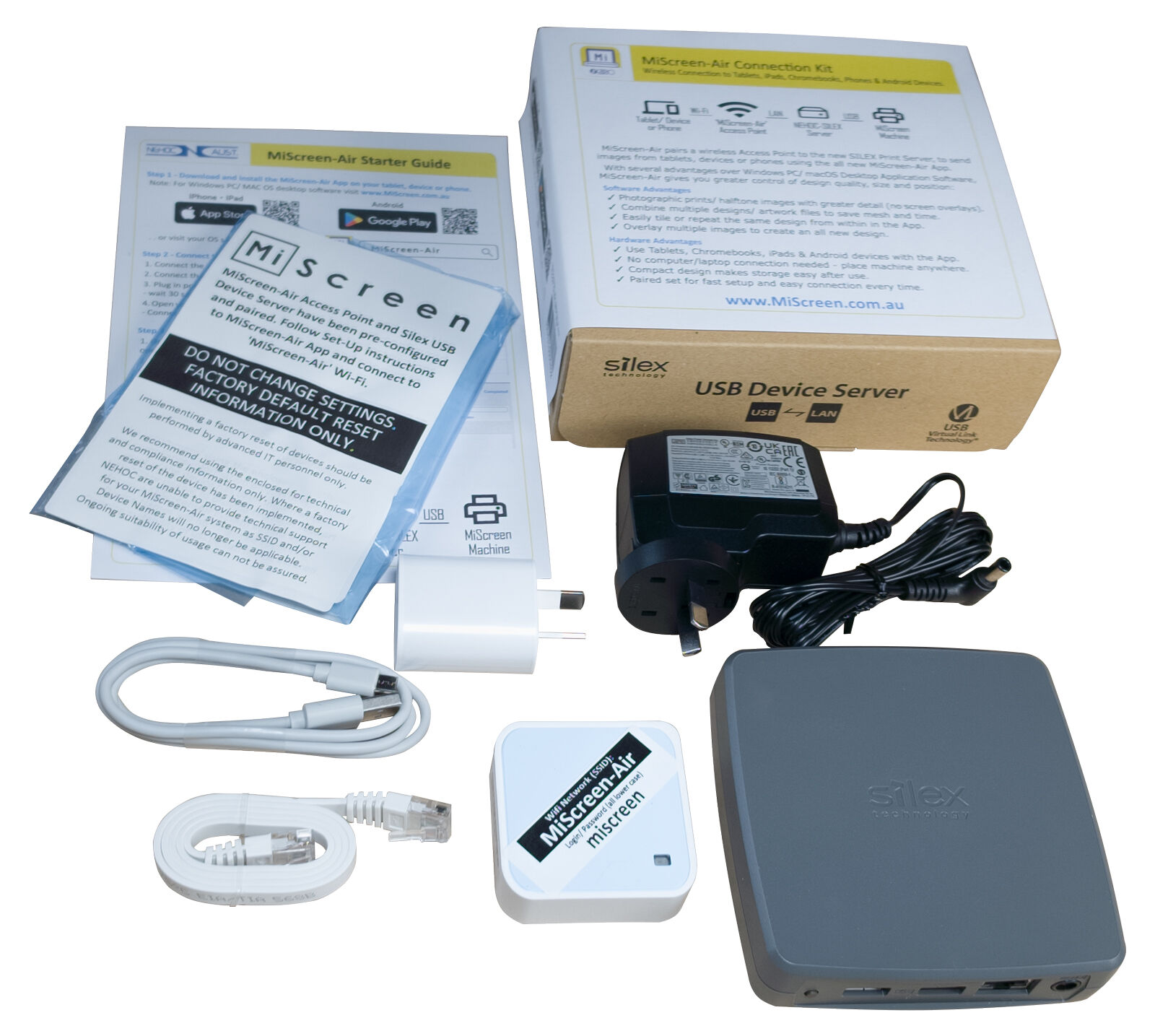
Each kit contains a paired set, including a pre-configured NEHOC-SILEX Print Server & WiFi Access Point for fast and easy connection.
1 x NEHOC-SILEX DS-700AU Print Server (Australian Certified Model incl. AU power supply).
1 x MiScreen-Air Configured Wireless Access Point (incl. power supply.) for WiFi connection.
1 x LAN Connection Cable (links SILEX & Access point).
1 x Set-Up Guide & App Guide Instructions
Note: Requires MiScreen Machine (sold separately) to complete connection.
NEHOC SILEX DS-700AU Specifications
- Australian Certified power model (not DS-700US or DS-700EU models with US/Euro power supplies requiring adapters).
- The DS-700AU's USB 3 SuperSpeed port provides higher bandwidth over Gigabit Ethernet LAN than the traditional USB 2.0 device server.
- Support for automatic transmission & support of standard TCP/IP printing (LPR/RAW).
- 1x USB 3.0 SUPERSPEED, 1x USB 2.0 High Speed with 10/100/1000 Ethernet connections.
NEHOC SILEX DS-700AU models have been programmed and paired to the MiScreen Access Point, for plug and play operation. An initial paring of SILEX to MiScreen is required, thereafter the SILEX device recognises the configuration and operation is plug and play without ongoing pairing required.
| SKU | DSM-MSAIR |
| Barcode # | 9334315000402 |
| Brand | NEHOC |
| Artist / Author | MiScreen-Air WiFi Connection Kit |
| Shipping Weight | 0.5000kg |
| Shipping Width | 0.170m |
| Shipping Height | 0.055m |
| Shipping Length | 0.160m |
| Shipping Cubic | 0.001496000m3 |
| Unit Of Measure | Kit |
| Type | Accessory Pack for RISO MiScreen Systems. |
| Format | Requires MiScreen Machine (sold separately). |